Understanding VM Networking: NAT, Bridged, Host-Only & More
When I first started using virtual machines, the Network Adapter settings were probably one of the most confusing parts for me.
NAT. Bridged. Host-Only. Internal Network. Custom Network.
I knew they had something to do with connectivity, but honestly, I mostly left everything on the default setting and moved on.
It took a lot of labs, broken configurations, and a few mistakes to really understand what was happening.
After spending a lot more time with VMs, security labs, CTFs, Active Directory environments, and malware analysis, I stopped thinking about these options as simple connectivity settings.
The question isn’t really:
“Does this VM have Internet?”
The better question is:
“What should this VM be able to talk to?”
That sounds like a small difference, but it changes the way you build a security lab.
So this is the guide I wish I had when I started.
1. What virtualization actually is
At its simplest, virtualization lets you run a computer inside another computer.
Instead of having one physical machine for Windows, another for Kali, another for Ubuntu, and another one for a vulnerable server, you can run them all as virtual machines on the same physical host using a hypervisor.
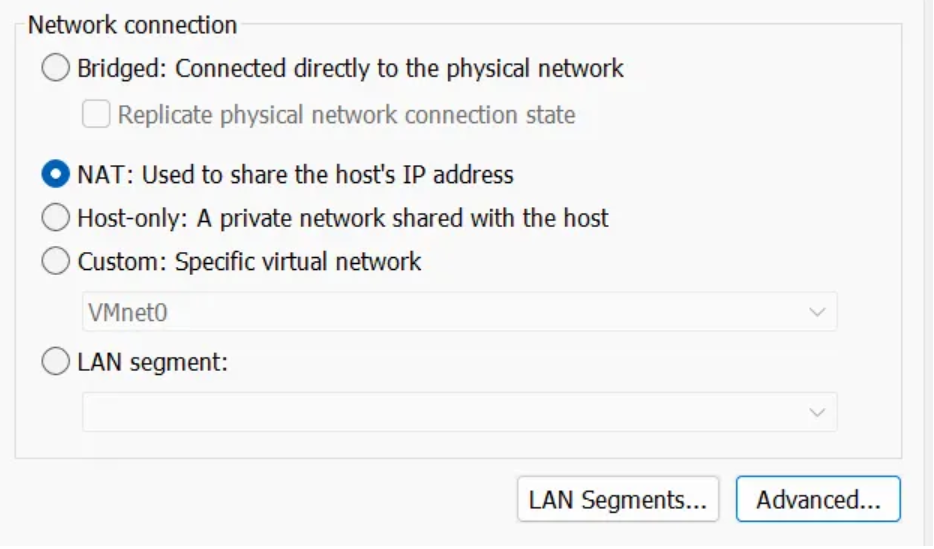
A VM has its own operating system, virtual CPU, RAM, storage, and network interface.
From inside the guest, it feels a lot like using a normal computer.
The difference is that the hypervisor is creating and managing those resources behind the scenes.
The networking part is where things get interesting.
Once you have several VMs running at the same time, you’re basically building a small network environment on your own computer.
And that’s when the network adapter settings start to matter.
2. The virtual network adapter
A physical computer normally connects to a network through a Network Interface Card (NIC).
A VM has a virtual version of that.
The guest operating system sees a network adapter, gets an IP address, sends packets, runs DNS, connects to services, and generally behaves as if it were a physical machine.
The hypervisor decides where that virtual adapter actually goes.
Depending on the setup, it can connect the VM to:
- the host through NAT
- the physical LAN through Bridged networking
- an isolated host-only network
- an internal VM-to-VM network
- a custom virtual topology
This was probably the biggest thing I misunderstood at first.
I thought the network mode was mostly about whether the VM had Internet access.
It isn’t.
It is really about connectivity and boundaries.
And when you’re doing cybersecurity work, those boundaries matter.
3. Why I started caring about VM networking
For someone just using a VM to browse the Internet or install Linux packages, the network mode might seem like a minor configuration choice.
In a security lab, it’s different.
For example, imagine Kali scanning a vulnerable Windows VM.
That’s exactly what you want in a penetration-testing lab.
But if both machines are connected directly to your real home network, you’re no longer sure that the traffic is staying inside your lab.
A scan meant for a vulnerable VM could end up hitting another device on the network.
That’s not something I want to discover after the scan has already started.
The same becomes even more important with malware analysis.
A virtual machine is not automatically safe just because it’s virtual.
The configuration around it still matters.
That is why I now think about VM networking in terms of segmentation, isolation, attack surface, and blast radius rather than simply asking whether a VM is online.
4. NAT
NAT, or Network Address Translation, is probably the mode I’ve used the most for everyday VM usage.
The VM sits behind a virtual NAT service and uses the host’s network connection to reach external networks.
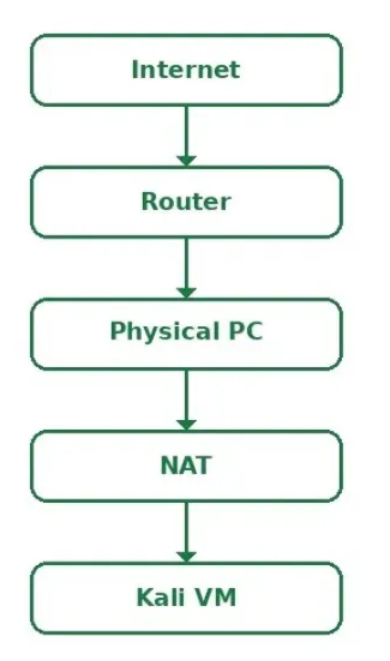
This is convenient for normal tasks.
For example, I use NAT when I want to:
- update packages
- install tools
- download legitimate lab resources
- browse from a disposable VM
- work with a VM that simply needs Internet access
For a general-purpose Kali VM, NAT is usually where I start.
But there is an important distinction here:
NAT is convenient, not completely isolated.
The VM still has outbound connectivity.
So if I’m dealing with something potentially dangerous, I don’t just think “it’s behind NAT, so we’re good.”
That is not how I approach malware analysis.
5. Bridged networking
Bridged mode is different.
Instead of sitting behind the host’s virtual NAT, the VM connects to the physical network through the host’s network interface and can appear on the LAN like another device.
This is useful when I actually want the VM to participate in the real network.
For example:
- DHCP testing
- network administration practice
- service discovery
- testing network behavior against real devices
- labs where the VM genuinely needs LAN connectivity
It’s also the setting I treat with the most caution.
Once the VM is connected to the real LAN, it is no longer just communicating with my little virtual lab.
It can potentially interact with other systems on that network too.
So I only use Bridged networking when there is a specific reason for it.
For malware analysis, I would not enable it by default.
My rule is pretty simple:
If the VM doesn’t need the real network, don’t put it on the real network.
6. Host-Only networking
Host-Only has probably been one of the most useful modes for my security labs.
The idea is straightforward: create a private virtual network that allows the host and selected VMs to communicate without directly putting those VMs on the physical LAN.
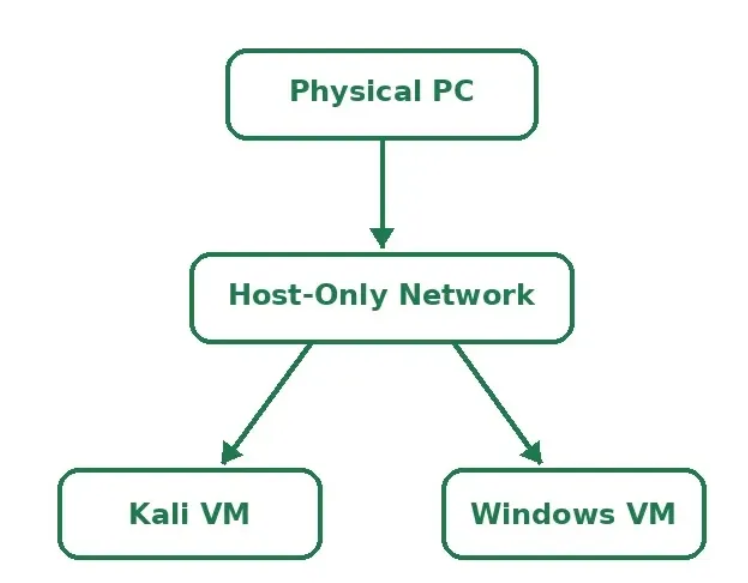
This is the kind of setup I use for things like:
- CTF environments
- vulnerable-machine labs
- penetration-testing practice
- Active Directory labs
- Windows security testing
- exploit development
It’s especially useful when I want Kali to attack another VM without accidentally putting that traffic onto my actual network.
That was one of the first configurations that made security labs feel much more realistic to me.
There’s an important detail, though.
I don’t treat “Host-Only” as a magic security guarantee.
If a VM has another network adapter connected to NAT or Bridged networking, then it obviously has another path out.
So I always look at the whole topology, not just the name of one adapter.
7. Internal Network
VirtualBox also has an option called Internal Network.
This is useful when you want VMs to communicate with each other without directly including the host in that network.
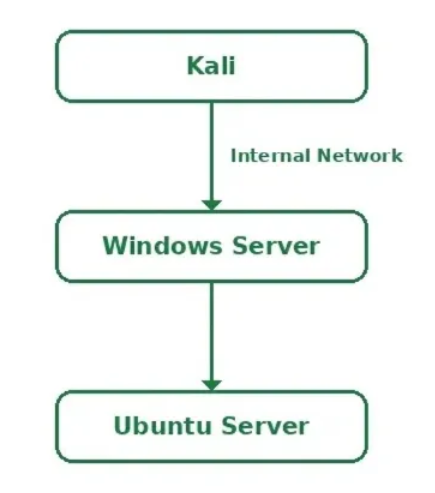
This is particularly useful for environments where I want the virtual network to stay completely between the guests.
For example:
- malware-analysis labs
- simulated enterprise networks
- isolated communication testing
- multi-machine experiments
The downside is convenience.
Since the host isn’t directly connected to that network, things like administration and file transfer can take a little more planning.
But sometimes that’s exactly the point.
When you’re dealing with suspicious software, removing unnecessary connections is usually worth the extra setup.
8. Custom virtual networks
The built-in networking modes are great when you’re getting started.
Eventually, though, you start wanting more control.
Maybe you want a DMZ.
Maybe you want an internal network and a management network.
Maybe you want an attacker machine on one segment and a vulnerable server on another.
This is where custom virtual networks become really interesting.
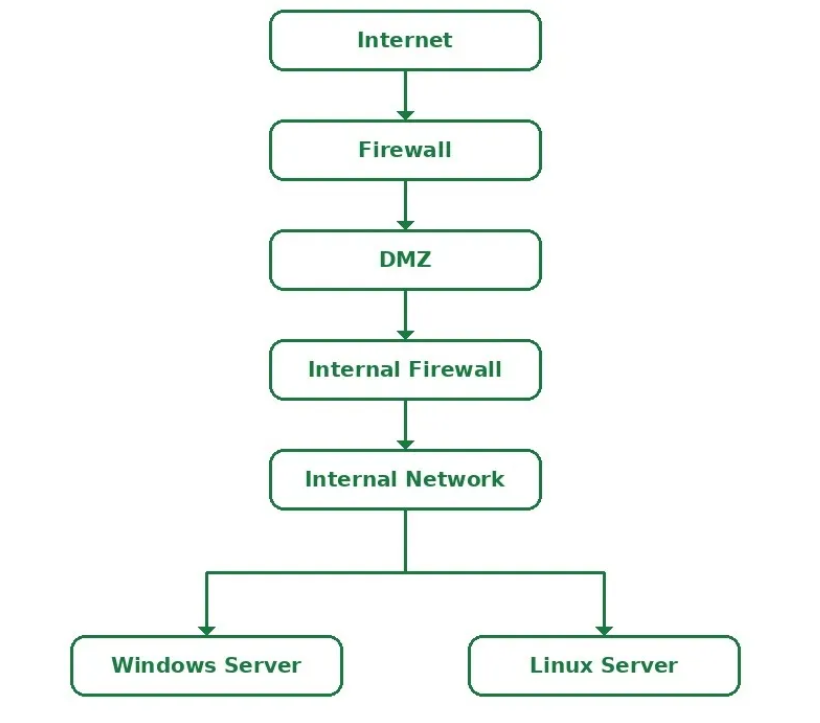
VMware VMnets and similar features let you create your own virtual network structure and decide which interfaces connect to which segments.
This is one of my favorite things about virtualization for cybersecurity.
You can build a small fake enterprise environment on one machine.
You can have a web server in a DMZ, internal Windows machines, an attacker VM, a monitoring VM, and a separate management segment without needing a room full of physical hardware.
At that point, you’re not just learning virtualization anymore.
You’re practicing network segmentation and security architecture.
9. NAT Network
There’s another option worth understanding, especially if you’re using VirtualBox: NAT Network.
It is different from simply putting every VM on normal NAT.
With a NAT Network, multiple VMs can share the same virtual network and communicate with each other while still having outbound connectivity.
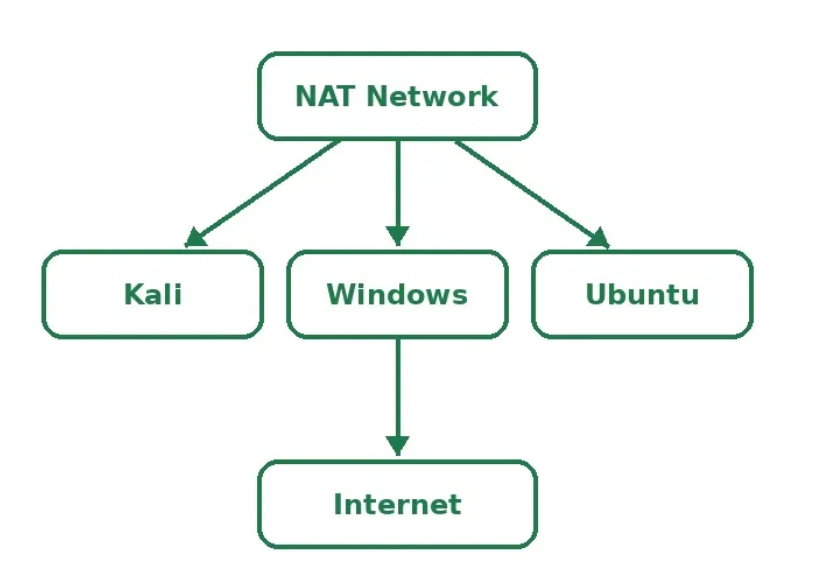
This can be useful for multi-VM environments where the machines need to interact, but you don’t want to connect them directly to the physical LAN.
It can be a useful middle ground.
That said, I still wouldn’t use it blindly for malware analysis.
If something doesn’t need outbound access, I would rather remove that access entirely than give it connectivity just because it’s convenient.
10. What would I actually choose?
This is where things become much easier once you stop looking for one “best” networking mode.
I choose based on what I’m trying to build.
For a normal VM that just needs Internet access, I use NAT.
For a Kali-versus-vulnerable-machine lab, I usually use Host-Only.
When I specifically need a VM to behave like another device on my real LAN, I use Bridged.
For a more realistic enterprise-style environment, I start thinking about custom networks and segmentation.
For a network that should stay entirely between guests, Internal Network can make more sense.
And when I need several VMs to communicate while still having controlled outbound connectivity, NAT Network can be useful.
The important part is not memorizing the names.
It’s understanding why you are connecting the machine to that network in the first place.
11. Malware analysis is where I stopped being casual about networking
This is probably where all of this becomes most important.
A malware-analysis VM should not be treated like a normal workstation.
Just because the malware is running inside a virtual machine does not mean it can’t interact with things outside it.
Depending on the configuration, the guest might have access to:
- the Internet
- the host
- shared folders
- clipboard synchronization
- drag-and-drop
- USB devices
- mapped storage
- additional network interfaces
So when I’m running an unknown sample, I assume the guest is compromised as soon as the sample executes.
I’m not trying to make some magical “100% safe VM.”
I’m trying to make the environment contained enough that a compromise has as little room to move as possible.
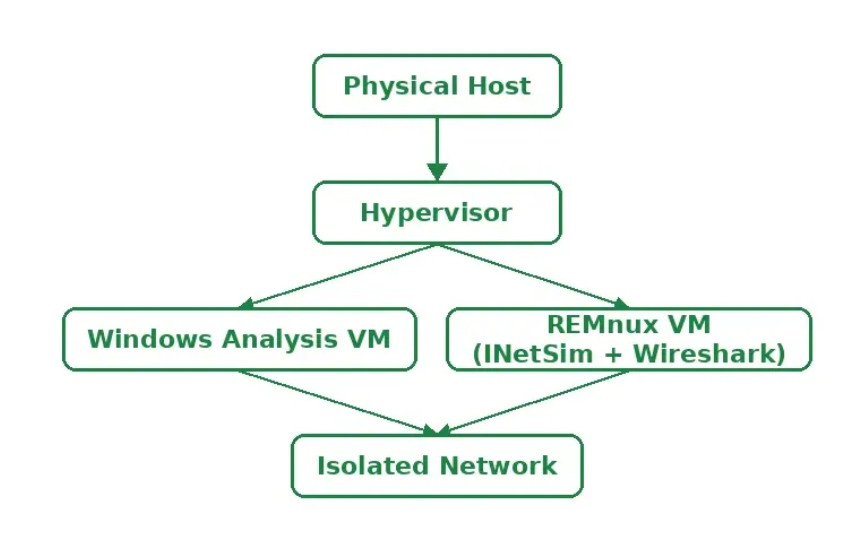
For example, the Windows VM can run the sample while another VM such as REMnux handles analysis, monitoring, or simulated network services.
The key part is that the environment is deliberately separated from my real network.
12. Disable host integration before running unknown samples
Network isolation is important, but it isn’t the only thing I check.
Virtual machine integration features can create additional paths between the guest and host.
Shared folders
Shared folders are incredibly useful in normal lab work.
They’re also something I don’t want enabled when I’m executing unknown malware.
I disable them before analysis.
The idea is simple: don’t give suspicious software unnecessary access to directories on the host.
Clipboard and drag-and-drop
Same story here.
Clipboard sharing is convenient.
Drag-and-drop is convenient.
But when I’m running something malicious, convenience isn’t the priority anymore.
I disable both.
It’s a small change, but it removes another unnecessary interaction between the guest and host.
Physical disks and USB devices
I also avoid giving the VM unnecessary access to physical storage.
That means I don’t map personal drives, USB devices, or external storage into a malware-analysis environment unless there is a specific reason to do so.
The analysis VM should contain what I need for the investigation, not everything on my computer.
13. Don’t put valuable credentials inside the analysis VM
This one sounds obvious, but it’s easy to forget.
I don’t use a malware-analysis VM for:
- banking
- personal cloud accounts
- password managers
- work accounts
- important SSH environments
- anything else I actually care about
The reasoning is simple:
Don’t put valuable assets inside an environment you’re deliberately exposing to malicious code.
For lab work, disposable or low-value accounts are a much better approach when authentication is necessary.
14. Snapshots are part of the process
Before running a suspicious sample, I want a clean state that I can go back to.
I learned this lesson pretty quickly.
Removing the malware executable after an analysis doesn’t mean you’ve cleaned the machine.
A sample can modify the registry, create services, create scheduled tasks, add startup entries, drop files, or change other system settings.
A clean snapshot makes returning to the original state much easier.
For me, the workflow is basically:
clean state → snapshot → analysis → collect evidence → shut down → revert
Snapshots aren’t a replacement for proper forensic preservation, but for a disposable lab environment they are extremely useful for restoring a known-good state.
15. Keep important data outside the analysis environment
I treat analysis VMs as disposable.
I don’t keep personal documents, passwords, SSH keys, API keys, work files, or anything else important inside them.
I want to be able to delete the entire VM tomorrow and not lose anything that matters.
That also makes rebuilding much easier.
When a lab is easy to destroy and recreate, you’re less tempted to keep adding things to it until it becomes another permanent workstation.
16. Watch the traffic
One of the biggest things I learned from malware analysis is that execution alone doesn’t tell you the whole story.
Network behavior can reveal a lot.
A sample might:
- make DNS requests
- connect to remote IP addresses
- send HTTP requests
- download another payload
- beacon to a server
- attempt command-and-control communication
Tools such as Wireshark, tcpdump, Zeek, INetSim, and FakeNet-NG are useful for observing and, depending on the setup, simulating that activity.
But simply capturing packets isn’t enough.
I want to connect the network traffic back to what is happening inside the VM.
What process made the connection?
What domain was queried?
Which IP did it contact?
What protocol did it use?
Did the connection actually succeed?
Was another payload downloaded?
That is where network monitoring becomes useful during an investigation.
17. Should you give malware Internet access?
My default answer is no.
An unknown sample does not need unrestricted Internet access just because you want to watch what it does.
A controlled analysis environment can simulate the services or responses that the sample expects.
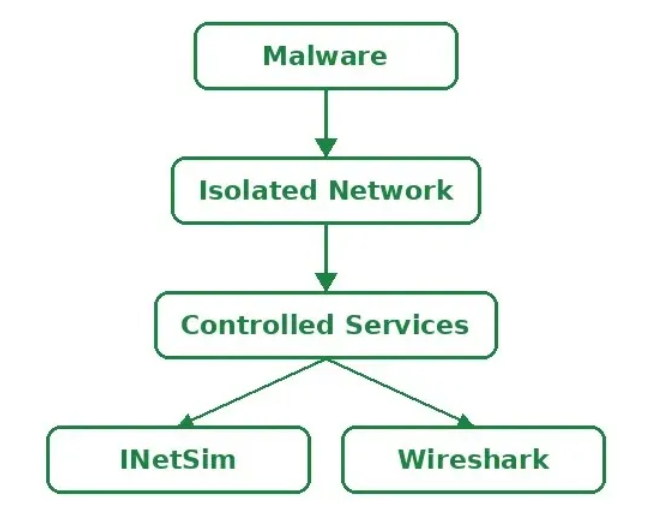
That lets you observe things such as DNS requests, connection attempts, and application-layer traffic while keeping the environment separated from the real Internet.
There are situations where researchers may need carefully controlled external connectivity.
But that should be an intentional decision with proper containment and monitoring.
It shouldn’t be the default setting.
18. The bigger lesson
After working with virtual labs for a while, I realized that choosing NAT or Host-Only isn’t really the most interesting part.
The interesting part is what you’re trying to isolate.
Who should be able to communicate with whom?
Which machine needs Internet access?
Does the host need access?
Should the attacker VM see the management network?
Does the malware-analysis VM need any route outside the lab?
Where should monitoring happen?
Those questions are much more important than simply knowing what each dropdown option is called.
For example, a web server might need access to a DMZ network but not to an internal management segment.
A Kali VM might need to reach vulnerable machines but not the host.
A malware VM might need almost no outbound connectivity at all.
A monitoring system might need visibility into traffic without becoming part of the trusted environment.
That is what makes virtualization so useful for cybersecurity.
You’re not just creating virtual machines.
You’re designing trust boundaries.
Conclusion
Virtualization has made cybersecurity labs much more accessible.
With one decent machine, you can simulate vulnerable servers, attackers, Windows environments, Active Directory, monitoring systems, and even segmented enterprise networks.
But the way those machines are connected matters just as much as the machines themselves.
After years of rebuilding labs, my own rules are fairly simple:
- NAT when I need ordinary Internet access.
- Host-Only when I want a controlled lab separated from the physical LAN.
- Internal Network when I want communication to stay between guests.
- Custom networks when I need real segmentation.
- Bridged when direct LAN connectivity is intentional.
- Controlled or isolated networking whenever malware is involved.
And when I’m dealing with something suspicious, I don’t ask:
“Is this VM safe?”
I ask:
“What can this VM reach, what can reach it, and what can I observe?”
That change in mindset has probably been more valuable to me than memorizing every VM networking option.
Isolation, segmentation, least privilege, monitoring, and recoverability are what make a lab useful. The networking mode is just one part of the design.