TryHackMe Linux Logging for SOC: Answers
A walkthrough of Linux logging sources for SOC investigations, including syslog, authentication logs, Bash history, and auditd.

1. Introduction
Linux logging is the process of recording system events, activities, and errors generated by the operating system and applications running on it. These logs provide a detailed trail of what happens on a machine, from user logins and file access to network connections and system errors. In a Security Operations Center (SOC), Linux logs are a primary source of evidence for detecting, investigating, and responding to security incidents.
SOC analysts rely on these logs to monitor for suspicious activity, such as unauthorized access attempts, privilege escalation, or abnormal process execution. Centralized log collection and monitoring, often through SIEM systems, allow security teams to correlate Linux logs with events from other systems across the network. This turns raw log data into actionable intelligence, helping the SOC ensure compliance, strengthen defenses, and maintain security visibility.
2. Working with Text Logs
Log format
Linux-based systems are not immune to malware, and Linux-targeted intrusions are a growing problem. As a SOC analyst, you may need to investigate Linux alerts, so it is useful to understand how logging works.
- In this room, Linux refers to distributions such as Debian, Ubuntu, CentOS, and RHEL.
- The room focuses on Linux servers without a GUI and does not explain desktop logging.
Working with logs
Unlike Windows, Linux logs many events in plain-text files, which can be read with a text editor without a specialized tool such as Event Viewer. On the other hand, default Linux logs are less structured: there are no event codes or strict formatting rules. Many Linux logs are located in /var/log/.
For example, /var/log/syslog is an aggregated stream of various system events:
1
2
3
4
5
6
7
root@thm-vm:~$ cat /var/log/syslog | head
[...]
2025-08-13T13:57:49.388941+00:00 thm-vm systemd-timesyncd[268]: Initial clock synchronization to Wed 2025-08-13 13:57:49.387835 UTC.
2025-08-13T13:59:39.970029+00:00 thm-vm systemd[888]: Starting dbus.socket - D-Bus User Message Bus Socket...
2025-08-13T14:02:22.606216+00:00 thm-vm dbus-daemon[564]: [system] Successfully activated service 'org.freedesktop.timedate1'
2025-08-13T14:05:01.999677+00:00 thm-vm CRON[1027]: (root) CMD (command -v debian-sa1 > /dev/null && debian-sa1 1 1)
[...]
Filtering logs
Thousands of events may appear in syslog, but only a few may be relevant to a particular investigation. Filter the data to narrow down the search. For example, grep can show only cron events:
1
2
3
4
root@thm-vm:~$ cat /var/log/syslog | grep CRON
2025-08-13T14:17:01.025846+00:00 thm-vm CRON[1042]: (root) CMD (cd / && run-parts --report /etc/cron.hourly)
2025-08-13T14:25:01.043238+00:00 thm-vm CRON[1046]: (root) CMD (command -v debian-sa1 > /dev/null && debian-sa1 1 1)
2025-08-13T14:30:01.014532+00:00 thm-vm CRON[1048]: (root) CMD (date > mycrondebug.log)
Discovering logs
If you are looking for user logins but do not know where to start, search /var/log/ for relevant terms such as login, auth, or session:
1
2
3
4
5
6
7
8
9
10
11
root@thm-vm:~$ ls -l /var/log
drwxr-xr-x 2 root root 4096 Aug 12 16:41 apt
drwxr-x--- 2 root adm 4096 Aug 12 12:40 audit
-rw-r----- 1 syslog adm 45399 Aug 13 15:05 auth.log
-rw-r--r-- 1 root root 1361277 Aug 12 16:41 dpkg.log
drwxr-sr-x+ 3 root systemd-journal 4096 Oct 22 2024 journal
-rw-r----- 1 syslog adm 214772 Aug 13 13:57 kern.log
-rw-r----- 1 syslog adm 315798 Aug 13 15:05 syslog
[...]
root@thm-vm:~$ grep -R -E "auth|login|session" /var/log
[...]
Logging caveats
Linux allows administrators to change log format, verbosity, and storage location. With hundreds of distributions, logs may look different from those shown in this room or may not exist on a particular system.
Question: Use
/var/log/syslogon the VM. Which time server domain did the VM contact to sync its time?
1
2
3
4
5
6
7
8
9
ubuntu@thm-vm:~$ cat /var/log/syslog | grep timesync
2025-08-13T13:41:48.184089+00:00 thm-vm systemd[1]: Starting systemd-timesyncd.service - Network Time Synchronization...
2025-08-13T13:41:48.184498+00:00 thm-vm systemd[1]: Started systemd-timesyncd.service - Network Time Synchronization.
2025-08-13T13:41:48.184973+00:00 thm-vm systemd-timesyncd[275]: Network configuration changed, trying to establish connection.
2025-08-13T13:42:17.819639+00:00 thm-vm systemd-timesyncd[275]: Contacted time server 185.125.190.58:123 (ntp.ubuntu.com).
2025-08-13T13:42:17.821464+00:00 thm-vm systemd-timesyncd[275]: Initial clock synchronization to Wed 2025-08-13 13:42:17.947612 UTC.
2025-08-28T14:02:07.694115+00:00 thm-vm systemd-timesyncd[282]: Contacted time server 185.125.190.58:123 (ntp.ubuntu.com).
2025-09-09T13:45:41.665964+00:00 thm-vm systemd-timesyncd[266]: Contacted time server 185.125.190.58:123 (ntp.ubuntu.com).
2025-09-20T10:05:25.598784+00:00 thm-vm systemd-timesyncd[281]: Timed out waiting for reply from 185.125.190.57:123 (ntp.ubuntu.com).
Answer:
ntp.ubuntu.com
Question: What is the kernel message from Yama in
/var/log/syslog?
1
2
3
4
5
6
ubuntu@thm-vm:~$ grep Yama /var/log/syslog
2025-08-13 T13:41:48.176653+00:00 thm-vm kernel: Yama: becoming mindful.
2025-08-13 T13:57:19.908956+00:00 thm-vm kernel: Yama: becoming mindful.
2025-08-28 T14:02:07.691523+00:00 thm-vm kernel: Yama: becoming mindful.
2025-09-09 T13:45:41.659300+00:00 thm-vm kernel: Yama: becoming mindful.
2025-09-20 T10:04:48.489977+00:00 thm-vm kernel: Yama: becoming mindful.
Answer:
becoming mindful.
3. Authentication Logs
The first and often most useful log file to monitor is /var/log/auth.log (or /var/log/secure on RHEL-based systems). Despite its name, it can also store user-management events, launched sudo commands, and more.
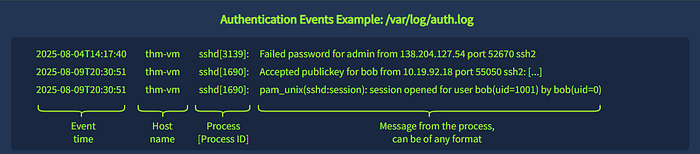
Login and logout events
Successful logins and logouts can be found by filtering for session opened or session closed. Events can represent local, SSH, Samba, cron, and sudo sessions:
1
2
3
4
5
6
7
8
9
10
11
12
root@thm-vm:~$ cat /var/log/auth.log | grep -E 'session opened|session closed'

2025-08-02 T16:04:43 thm-vm login[1138]: pam_unix(login:session): session opened for user bob(uid=1001) by bob(uid=0)
2025-08-02 T19:23:08 thm-vm login[1138]: pam_unix(login:session): session closed for user bob

2025-08-04 T09:09:06 thm-vm sshd[839]: pam_unix(sshd:session): session opened for user alice(uid=1002) by alice(uid=0)
2025-08-04 T12:46:13 thm-vm smbd[1795]: pam_unix(samba:session): session opened for user alice(uid=1002) by alice(uid=0)

2025-08-06 T19:35:01 thm-vm CRON[41925]: pam_unix(cron:session): session opened for user root(uid=0) by root(uid=0)
2025-08-06 T19:35:01 thm-vm CRON[3108]: pam_unix(cron:session): session closed for user root

2025-08-07 T09:12:32 thm-vm sudo: pam_unix(sudo:session): session opened for user root(uid=0) by carol(uid=1003)
SSH events have a slightly different format:
1
2
3
4
5
root@thm-vm:~$ cat /var/log/auth.log | grep "sshd" | grep -E 'Accepted|Failed'
# Common SSH log format: <is-successful> <auth-method> for <user> from <ip>
2025-08-07 T11:21:25 thm-vm sshd[3139]: Failed password for root from 222.124.17.227 port 50293 ssh2
2025-08-07 T14:17:40 thm-vm sshd[3139]: Failed password for admin from 138.204.127.54 port 52670 ssh2
2025-08-09 T20:30:51 thm-vm sshd[1690]: Accepted publickey for bob from 10.19.92.18 port 55050 ssh2: <key>
Miscellaneous events
Authentication logs can help detect user-management activity. Search for passwd, useradd, usermod, and userdel:
1
2
3
4
5
6
root@thm-vm:~$ cat /var/log/auth.log | grep -E '(passwd|useradd|usermod|userdel)\['
2023-02-01 T11:09:55 thm-vm passwd[644]: password for 'ubuntu' changed by 'root'
2025-08-07 T22:11:11 thm-vm userdel[1887]: delete user 'oldbackdoor'
2025-08-07 T22:11:29 thm-vm useradd[1878]: new user: name=backdoor, UID=1002, GID=1002, shell=/bin/sh
2025-08-07 T22:11:54 thm-vm usermod[1906]: add 'backdoor' to group 'sudo'
2025-08-07 T22:11:54 thm-vm usermod[1906]: add 'backdoor' to shadow group 'sudo'
Sudo command records can also show what a user ran with elevated privileges:
1
2
3
4
root@thm-vm:~$ cat /var/log/auth.log | grep -E 'COMMAND='
2025-08-07 T11:21:49 thm-vm sudo: ubuntu : TTY=pts/0 ; [...] COMMAND=/usr/bin/systemctl stop edr
2025-08-07 T11:23:18 thm-vm sudo: ubuntu : TTY=pts/0 ; [...] COMMAND=/usr/bin/ufw status numbered
2025-08-07 T11:23:33 thm-vm sudo: ubuntu : TTY=pts/0 ; [...] COMMAND=/usr/bin/su
Question: Continue with the VM and use
/var/log/auth.log. Which IP address failed to log in as multiple users via SSH?
1
2
3
4
ubuntu@thm-vm:~$ grep "Failed password" /var/log/auth.log | awk '{print $(NF-3), $(NF-5)}' | sort | uniq
10.14.94.82 admin
10.14.94.82 root
10.14.94.82 support
Answer:
10.14.94.82
Question: Which user was created and added to the
sudogroup?
1
2
3
4
5
ubuntu@thm-vm:~$ grep -E '(useradd|usermod|userdel)' /var/log/auth.log
2025-08-13T18:04:10.580438+00:00 thm-vm useradd[1451]: new group: name=xerxes, GID=1001
2025-08-13T18:04:10.580683+00:00 thm-vm useradd[1451]: new user: name=xerxes, UID=1001, GID=1001, home=/home/xerxes, shell=/bin/sh, from=/dev/pts/1
2025-08-13T18:04:29.425939+00:00 thm-vm usermod[1458]: add 'xerxes' to group 'sudo'
2025-08-13T18:04:29.426146+00:00 thm-vm usermod[1458]: add 'xerxes' to shadow group 'sudo'
Answer:
xerxes
4. Common Linux Logs
Generic system logs
Linux tracks many other events in /var/log/, including kernel messages, network changes, service or cron runs, and package installations. The most common files include:
/var/log/kern.log: kernel messages and errors./var/log/syslog(or/var/log/messages): a consolidated stream of Linux events./var/log/dpkg.log(or/var/log/apt): package-manager logs on Debian-based systems./var/log/dnf.log(or/var/log/yum.log): package-manager logs on RHEL-based systems.
These logs are valuable during digital forensics and incident response (DFIR), but can be noisy and difficult to parse. The TryHackMe Linux Logs Investigations room explores them in more detail.
Application-specific logs
SOC analysts may monitor logs from specific applications. Database logs can show queries, mail logs can help investigate phishing, container logs can reveal anomalies, and web-server logs can show which pages were accessed, when, and by whom.
Example Nginx access log:
1
2
3
4
5
6
root@thm-vm:~$ cat /var/log/nginx/access.log
10.0.1.12 - - [11/08/2025:14:32:10 +0000] "GET / HTTP/1.1" 200 3022
10.0.1.12 - - [11/08/2025:14:32:14 +0000] "GET /login HTTP/1.1" 200 1056
10.0.1.12 - - [11/08/2025:14:33:09 +0000] "POST /login HTTP/1.1" 302 112
10.0.4.99 - - [11/08/2025:17:11:20 +0000] "GET /images/logo.png HTTP/1.1" 200 5432
10.0.5.21 - - [11/08/2025:17:56:23 +0000] "GET /admin HTTP/1.1" 403 104
Bash history
Bash history records commands entered interactively. Commands are initially stored in memory during a session and written to the user’s ~/.bash_history file when they log out:
1
2
3
4
5
6
7
8
9
10
11
12
ubuntu@thm-vm:~$ cat /home/ubuntu/.bash_history
echo "hello" > world.txt
nano /etc/ssh/sshd_config
sudo su

ubuntu@thm-vm:~$ history
1 echo "hello" > world.txt
2 nano /etc/ssh/sshd_config
3 sudo su
4 ls -la /home/ubuntu
5 cat /home/ubuntu/.bash_history
6 history
Bash history can be useful, but it is rarely a dependable SOC source. It does not track non-interactive commands started by the OS, cron jobs, or web servers, and it can be bypassed or cleared. For example, a user can run a command without it appearing in history, launch a script, or switch to another shell:
1
2
3
4
ubuntu@thm-vm:~$ echo "You will never see me in logs!"
ubuntu@thm-vm:~$ nano legit.sh && ./legit.sh
ubuntu@thm-vm:~$ sh
$ echo "I am no longer tracked by Bash!"
Question: According to the VM’s package-manager logs, which version of
unzipwas installed?
1
2
3
4
5
6
ubuntu@thm-vm:~$ zgrep -h "unzip" /var/log/dpkg.log* 2>/dev/null | grep -Ei 'install|upgrade|status' | sort -u
2025-08-12 16:41:24 install unzip:amd64 <none> 6.0-28ubuntu4.1
2025-08-12 16:41:24 status half-installed unzip:amd64 6.0-28ubuntu4.1
2025-08-12 16:41:25 status half-configured unzip:amd64 6.0-28ubuntu4.1
2025-08-12 16:41:25 status installed unzip:amd64 6.0-28ubuntu4.1
2025-08-12 16:41:25 status unpacked unzip:amd64 6.0-28ubuntu4.1
Answer:
6.0-28ubuntu4.1
Question: What flag can you see in one of the users’ Bash histories?
1
2
3
4
5
6
7
8
9
10
11
12
13
14
15
16
17
18
ubuntu@thm-vm:~$ sudo cat /root/.bash_history
nano /etc/ssh/sshd_config
exit
ll -h /var/log
echo "THM{note_to_remember}" >> notes.txt
apt install auditd
cd /etc/audit/
ls
cd rules.d/
nano audit.rules
ll `which python3`
systemctl restart auditd
systemctl status auditd
nano audit.rules
cd /etc/logrotate.d
ls
rm *
exit
Answer:
THM{note_to_remember}
5. Runtime Monitoring
By default, Linux does not reliably log process creation, file changes, or network-related activity. These are runtime events. Windows has the same limitation, which is why tools such as Sysmon are used. In Linux, auditd provides one way to monitor selected runtime activity.

System calls
A system call is how a program requests a service from the operating system, such as opening a file, creating a process, or accessing a device. Linux has more than 300 system calls; execve, for example, is used to execute a program.
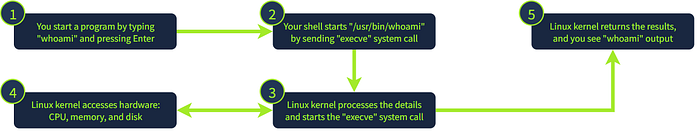
Modern EDR and logging tools rely on system calls to monitor activity and present it in a human-readable format. They select the calls and events to log based on monitoring requirements.
Question: Which Linux system call is commonly used to execute a program?
Answer:
execve
Question: Can a typical program open a file or create a process while bypassing system calls? (Yea/Nay)
Answer:
Nay
6. Using Auditd
Audit daemon
Auditd is a Linux auditing solution often used for runtime monitoring. Its rules, located in /etc/audit/rules.d/, define which system calls to monitor and which filters to apply.
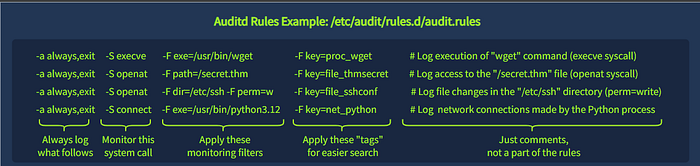
Monitoring every process, file, and network event can produce gigabytes of logs each day. More logs do not always mean better detection: an attack buried in noise can remain invisible. SOC teams focus on high-risk events and build balanced rulesets, such as the example audit rules.
Using Auditd
Auditd writes events to /var/log/audit/audit.log. The ausearch command formats the output and supports filtering. This example searches for events tagged with the proc_wget key:
1
2
3
4
5
6
root@thm-vm:~$ ausearch -i -k proc_wget
----
type=PROCTITLE msg=audit(08/12/25 12:48:19.093:2219) : proctitle=wget https://files.tryhackme.thm/report.zip
type=CWD msg=audit(08/12/25 12:48:19.093:2219) : cwd=/root
type=EXECVE msg=audit(08/12/25 12:48:19.093:2219) : argc=2 a0=wget a1=https://files.tryhackme.thm/report.zip
type=SYSCALL msg=audit(08/12/25 12:48:19.093:2219) : arch=x86_64 syscall=execve [...] ppid=3752 pid=3888 auid=ubuntu uid=root tty=pts1 exe=/usr/bin/wget key=proc_wget
Auditd splits the event into several records. PROCTITLE shows the command line, CWD gives the current working directory, and the other records contain system-call details:
pid=3888, ppid=3752: process ID and parent process ID, useful for building a process tree.auid=ubuntu: audit user, typically the account originally used to log in.uid=root: user who ran the command. This can differ fromauidafter usingsudoorsu.tty=pts1: session identifier, useful when multiple users are on a server.exe=/usr/bin/wget: absolute path to the executed binary.key=proc_wget: optional tag defined by the audit rule and used to filter events.
File events
Auditd can also track changes to important files. This example shows a nano command accessing the SSH configuration file:
1
2
3
4
5
6
root@thm-vm:~$ ausearch -i -k file_sshconf
----
type=PROCTITLE msg=audit(08/12/25 13:06:47.656:2240) : proctitle=nano /etc/ssh/sshd_config
type=CWD msg=audit(08/12/25 13:06:47.656:2240) : cwd=/
type=PATH msg=audit(08/12/25 13:06:47.656:2240) : item=0 name=/etc/ssh/sshd_config [...]
type=SYSCALL msg=audit(08/12/25 13:06:47.656:2240) : arch=x86_64 syscall=openat [...] ppid=3752 pid=3899 auid=ubuntu uid=root tty=pts1 exe=/usr/bin/nano key=file_sshconf
SOC teams often monitor critical files and directories, such as SSH configuration, cron definitions, and system settings.
Auditd alternatives
Auditd output can be verbose and difficult to ingest into a SIEM. Other runtime-monitoring options include:
- Sysmon for Linux: useful for teams already working with Sysmon and XML.
- Falco: an open-source option for monitoring containerized systems.
- Osquery: a flexible tool for several security use cases.
- EDR solutions, many of which monitor Linux runtime events.
These tools monitor system activity, including system calls. Understanding system calls helps explain why actions are or are not logged.
Continue with the VM and use auditd logs for the following questions. The room suggests using ausearch -i and grep.
Question: When was
secret.thmopened for the first time? UseMM/DD/YY HH:MM:SS. Access to this file is logged with thefile_thmsecretkey.
1
2
3
4
5
6
7
8
9
10
11
root@thm-vm:/var/log$ ausearch -i -k file_thmsecret
----
type=PROCTITLE msg=audit(08/13/25 13:41:41.595:56) : proctitle=/sbin/auditctl -R /etc/audit/audit.rules
type=CONFIG_CHANGE msg=audit(08/13/25 13:41:41.595:56) : auid=unset ses=unset subj=unconfined op=add_rule key=file_thmsecret list=exit res=yes
----
type=PROCTITLE msg=audit(08/13/25 13:57:13.530:51) : proctitle=/sbin/auditctl -R /etc/audit/audit.rules
type=CONFIG_CHANGE msg=audit(08/13/25 13:57:13.530:51) : auid=unset ses=unset subj=unconfined op=add_rule key=file_thmsecret list=exit res=yes
----
type=PROCTITLE msg=audit(08/13/25 18:36:54.574:1600) : proctitle=cat /secret.thm
type=CWD msg=audit(08/13/25 18:36:54.574:1600) : cwd=/root
type=SYSCALL msg=audit(08/13/25 18:36:54.574:1600) : arch=x86_64 syscall=openat success=yes exit=3 a0=AT_FDCWD a1=0x7ffd133b973a a2=O_RDONLY a3=0x0 items=1 ppid=1542 pid=1578 auid=ubuntu uid=root gid=root euid=root suid=root fsuid=root egid=root sgid=root fsgid=root tty=pts1 ses=30 comm=cat exe=/usr/bin/cat subj=unconfined key=file_thmsecret
Answer:
08/13/25 18:36:54
Question: What was the original file name downloaded from GitHub via
wget? Wget process creation is logged with theproc_wgetkey.
1
2
3
4
5
6
7
8
9
10
11
root@thm-vm:/var/log$ ausearch -i -k proc_wget
----
type=PROCTITLE msg=audit(08/12/25 21:39:16.428:1741) : proctitle=wget --timeout 60 -U wget/1.21.4-1ubuntu4.1 Ubuntu/24.04.1/LTS GNU/Linux/6.14.0-1010-aws/x86_64 AMD/EPYC/7571 cloud_id/aws -O- -
type=EXECVE msg=audit(08/12/25 21:39:16.428:1741) : argc=8 a0=wget a1=--timeout a2=60 a3=-U a4=wget/1.21.4-1ubuntu4.1 Ubuntu/24.04.1/LTS GNU/Linux/6.14.0-1010-aws/x86_64 AMD/EPYC/7571 cloud_id/aws a5=-O- a6=--content-on-error a7=https://motd.ubuntu.com
----
type=PROCTITLE msg=audit(08/13/25 07:05:33.666:2607) : proctitle=wget --timeout 60 -U wget/1.21.4-1ubuntu4.1 Ubuntu/24.04.1/LTS GNU/Linux/6.14.0-1010-aws/x86_64 AMD/EPYC/7571 cloud_id/aws -O- -
type=EXECVE msg=audit(08/13/25 07:05:33.666:2607) : argc=8 a0=wget a1=--timeout a2=60 a3=-U a4=wget/1.21.4-1ubuntu4.1 Ubuntu/24.04.1/LTS GNU/Linux/6.14.0-1010-aws/x86_64 AMD/EPYC/7571 cloud_id/aws a5=-O- a6=--content-on-error a7=https://motd.ubuntu.com
----
type=PROCTITLE msg=audit(08/13/25 18:29:14.700:1523) : proctitle=wget https://github.com/projectdiscovery/naabu/releases/download/v2.3.5/naabu_2.3.5_linux_amd64.zip -O /tmp/naabu.zip
type=EXECVE msg=audit(08/13/25 18:29:14.700:1523) : argc=4 a0=wget a1=https://github.com/projectdiscovery/naabu/releases/download/v2.3.5/naabu_2.3.5_linux_amd64.zip a2=-O a3=/tmp/naabu.zip
type=SYSCALL msg=audit(08/13/25 18:29:14.700:1523) : arch=x86_64 syscall=execve success=yes exit=0 [...] auid=ubuntu uid=root tty=pts1 ses=30 comm=wget exe=/usr/bin/wget key=proc_wget
Answer:
naabu_2.3.5_linux_amd64.zip
Question: Which network range was scanned using the downloaded tool? There is no dedicated key for this event, but it is in the auditd logs.
1
2
3
4
5
6
7
8
root@thm-vm:/var/log$ ausearch -i -k proc_all | grep -i naabu
type=PROCTITLE msg=audit(08/13/25 18:29:25.214:1524) : proctitle=unzip naabu.zip
type=EXECVE msg=audit(08/13/25 18:29:25.214:1524) : argc=2 a0=unzip a1=naabu.zip
type=PROCTITLE msg=audit(08/13/25 18:29:45.152:1526) : proctitle=chmod +x naabu
type=EXECVE msg=audit(08/13/25 18:29:45.152:1526) : argc=3 a0=chmod a1=+x a2=naabu
type=PROCTITLE msg=audit(08/13/25 18:29:51.986:1527) : proctitle=./naabu -host 192.168.50.0/24 -top-ports
type=EXECVE msg=audit(08/13/25 18:29:51.986:1527) : argc=5 a0=./naabu a1=-host a2=192.168.50.0/24 a3=-top-ports a4=100
type=SYSCALL msg=audit(08/13/25 18:29:51.986:1527) : arch=x86_64 syscall=execve success=yes [...] comm=naabu exe=/tmp/naabu subj=unconfined key=proc_all
Answer:
192.168.50.0/24
7. Conclusion
Linux log sources can be varied, but they often store enough detail to detect and investigate threats. Logs are usually kept as plain text in /var/log/. Important SOC sources include authentication logs, application-specific logs, and runtime logs. Bash history has limitations; auditd or an alternative monitoring solution can provide stronger visibility into system activity.
In upcoming rooms, this knowledge can help trace and investigate threats targeting Linux systems, from initial access through later attack stages.
Originally published on Medium.